Instagram Story Size | Size Guidelines & IG Story Tips
Instagram Story size is 1080 x 1920 pixels. On top of knowing the correct size, you should also be aware of some other important specifications for Instagram stories. This article outlines them and offers tips for creating and optimizing your Stories.
Don’t want to worry about resizing images and videos for stories? Not sure which layout to use for your Instagram Story? Quillbot has you covered with a bank of free, customizable Instagram Story Templates.
Key takeaways
- The ideal Instagram Story size is 1080 × 1920 px (9:16 aspect ratio). This ensures full-screen display across mobile devices and consistent visual quality.
- Stories support JPG/PNG images and MP4/MOV videos, with videos lasting up to 60 seconds per Story (longer ones are automatically split into segments).
- To avoid important elements being cut off, keep key text, logos, and CTAs within the central safe zone (1080 × 1420 px), leaving space at the top and bottom for user interface overlays.
- Strong Stories combine correct formatting with best practices like short video segments, interactive features, and clear CTAs to improve engagement and retention.


Instagram Story size and other specifications
Instagram Story size is 1080 pixels wide by 1920 pixels tall with a 9:16 aspect ratio. This sizing creates a slim vertical format. Stories may be static images or videos, but Story size is the same for both.
Beyond Instagram Story size, there are some other specifications you should keep in mind when creating Instagram stories, as outlined in the table below.
Instagram Story specifications
| Element | Specification |
|---|---|
| Size | 1080 x 1920 px |
| Aspect ratio | 9:16 |
| Maximum file size | 4GB for videos |
| 30MB for photos | |
| Supported file formats | MP4 or MOV for videos |
| JPG or PNG for photos | |
| Story length | 7 seconds per Story by default for photos |
| 1–60 seconds per Story for videos (videos longer than 60s are split into different stories) | |
| Video frame rate | Supports 24–60 frames per second (fps) but all stories are played back at 30 fps |
Instagram Story safe zone
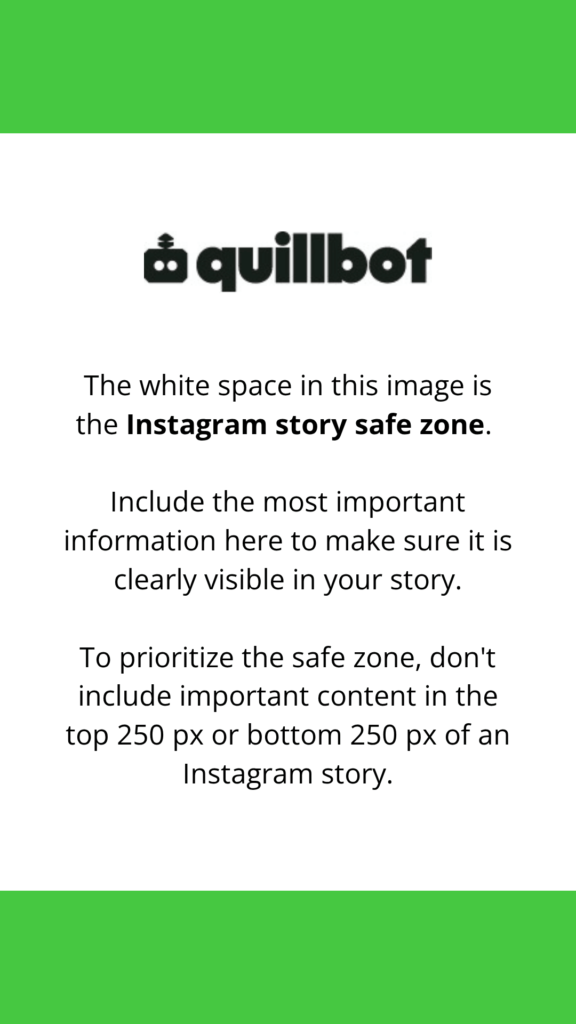
The Instagram Story safe zone is a space of 1080 × 1420 pixels in the perfect center of your Story. In this area, text, calls to action (CTAs), logos, and other important information are completely visible without any interference from the Instagram user interface.
In other words, you should include your Story’s most important information within this safe zone so that it isn’t obscured by functional elements like the profile name and photo that appear across the top of a Story or the DM, like, comment, and share options that appear across the bottom.
To avoid the Instagram Story “danger zones” and stick within the safe zone, do not put important content in the bottom or top 250 pixels of your Story.
10 Instagram Story tips
These 10 tips can help you when creating and optimizing your Instagram stories. They cover best practices for engaging stories, design hacks you might not know about, and ways to better get to know your audience and how to reach them.
1. Respect ideal size and the safe zone
As you’ve just learned, respecting the 1080 x 1920 px Instagram Story size and the idea of the safe zone will make sure your stories are visible, crisp, and clear. If you upload an image or video with different dimensions—for example, a horizontal image—you will have to either display it in a smaller format or crop it, both of which take away from your content’s maximum impact.
2. Keep video stories to 5–15 seconds
Social media experts recommend keeping your video stories between 5 and 15 seconds. After 15 seconds, viewers tend to drop off, so this length is ideal for capturing their attention. If you need to upload longer stories, it’s generally better to break the content into 15-second clips with one main idea per slide or video.
3. Use interactive elements to boost engagement
One way to improve engagement for your Instagram stories is to use interactive elements. You can add these from the same place you add locations, mentions, stickers, emojis, and graphics. Below are some ideas for how to use different interactive elements in stories.
Interactive elements in Instagram stories
| Element | How it works | Examples of how to use |
|---|---|---|
| Questions | Followers can submit written responses to a prompt or question (responses are private and can be shared anonymously in subsequent stories) | Host a Q&A, collect customer feedback, ask for content suggestions, gather recommendations, or invite followers to share their experiences |
| Quizzes | Creates a multiple-choice question with one correct answer, and followers immediately see if their answer was correct | Test audience knowledge, share industry trivia, educate followers about products or services, or create fun themed quizzes |
| Polls | Followers can vote between 2–4 options with a single tap, with results displayed in real time | Compare products, gather opinions, conduct market research, let followers choose future content topics, or vote on preferences such as colors, designs, or destinations |
| Emoji slider | Followers can express the intensity of their opinion by dragging an emoji along a sliding scale | Measure excitement about a product launch, gauge interest in an event, ask how much followers agree with a statement, or rate a new feature |
| Reaction sticker | Followers can respond with a quick emoji reaction rather than typing a message | Collect instant feedback, gauge audience sentiment, encourage participation with minimal effort, or measure reactions to announcements, photos, videos, and promotions |
- Create a new reel (you won’t need to post it).
- Add a Quiz and type in some content.
- Exit out of the reel (there’s no need to save it).
- Go to stories and click the stickers icon (square happy face).
- Click the search bar, and Quizzes should appear in “Recents.”
4. Add music for better engagement
Adding music to an Instagram Story can also help boost engagement. There are several reasons for this. On a human level, music can help create an emotional connection and show off your personality, which makes it more likely viewers will keep watching your Story. On a technological level, using audios—especially trending ones—may improve your visibility on the platform.
5. Add CTAs with links
If you’re using stories to promote anything off-Instagram (e.g., your website, blog, or an affiliate link on an e-commerce website), it’s critical to include a CTA link. Go to Stickers, click the “Link” option, and add your desired URL and sticker text. This way, your audience can navigate right from your Story to the target page.
If you need some help with writing CTAs, Quillbot’s Paraphraser can help you experiment with style and tone until you find the right wording.
6. Set up Highlights to save and organize stories
Story highlights keep your stories visible for longer than 24 hours. Highlights appear as circular icons beneath the “Follow” and “Message” buttons on a profile. Highlights should be organized by topics (e.g., “Trips,” “Food,” and “Fashion”) so that users know what to expect when they click on them. To add a new Highlight, click the plus icon, select stories to add, and give your Highlight a name and cover icon.
7. Use “Draw” to create solid-color backgrounds
Some people don’t know that you can create solid-color backgrounds on Instagram stories using the Draw tool. Select the Draw tool (look for a squiggly line icon), choose a color, and press and hold on the background of your Story. This will change the background to the selected color.
8. Extract brand colors with the eyedropper
You can also use custom or brand colors in Instagram stories. Select the color wheel to change the color of text or the pen tool (in Draw) and then click the eyedropper icon. You can then glide over your Story until you find the color you want. This is particularly useful if you want to match Story colors to a brand’s visual identity.
9. Make custom stickers with cutouts
You can also create custom stickers to use in your Instagram stories. This can add a personal, creative touch to your content, help establish brand identity, and entertain and engage your followers. To do so, go to Stickers, select Cutouts, and choose an image. Instagram’s AI will automatically select the area it thinks should be a sticker, though you can also manually select this if you prefer. Just like that, your sticker is ready for use in your stories.
- The Sticker Generator creates stickers from your text prompts
- The Emoji Generator creates custom emojis that you can turn into stickers
10. Analyze performance to find ways to improve
Finally, one of the best ways to optimize your Instagram stories is to analyze existing data for ways to improve. Instagram Insights—Instagram’s built-in analytics—provides metrics that can help you understand what content most resonates with your audience.
Key Instagram metrics are:
- Views: The total number of times content was seen, which helps you understand overall reach and whether or not your content is getting attention
- Interactions: The total number of engagement actions (e.g., likes, comments, replies, sticker taps, poll votes, and shares), which helps you see how compelling your content is
- New followers: The number of new followers in a certain time period, and what content prompted them to follow your content
- Content you shared: How many pieces of content your shared during a specific time period and their key metrics, which helps you compare content easily to see which format works best
Insights for all content types—stories, reels, posts, etc.—appear in the same place, but Instagram provides breakdowns for each metric by content type, meaning you can easily focus on analyzing your stories.
Other Instagram sizes
Instagram Story size is one specification you need to keep in mind when using Instagram. But there are many other types of content you can upload to the platform, each with its own unique size. Get to know other Instagram sizes in the table below.
Other Instagram sizes
| Format | Recommended size (px) | Aspect ratio | Notes |
|---|---|---|---|
| Stories | 1080 x 1920 | 9:16 | Full-screen vertical format; keep key content in safe zone |
| Story highlight icon | 400 x 400 | 1:1 | Displayed as a circle, so keep important elements centered |
| Reels | 1080 × 1920 | 9:16 | Same as stories, keep key content in safe zone |
| Posts (square) | 1080 × 1080 | 1:1 | Most stable format for grid consistency |
| Posts (3:4 portrait) | 1080 × 1440 | 3:4 | Best-performing feed format (max screen space); the new default portrait size |
| Posts (4:5 portrait) | 1080 × 1350 | 4:5 | Legacy standard but still supported; cropped to 3:4 in grid view |
| Posts (landscape) | 1080 × 566 | 1.91:1 | Less engagement than portrait but still supported |
| Profile picture | 400 × 400 | 1:1 | Displayed as a circle, so keep important elements centered |
As for carousels, all images in the post must respect the same format. In other words, you cannot create a carousel that features both square and portrait images.
Frequently asked questions about Instagram Story size
- What is Instagram Story size in inches?
-
Instagram Stories don’t have a fixed size in inches because they are a digital asset and are defined in pixels. The ideal Instagram Story size in pixels is 1080 x 1920.
Story size in inches depends on DPI (dots per inch) and PPI (pixels per inch), and both vary by device. For example, at 72 PPI, an Instagram Story would measure 15 x 26.67 inches, and at 96 PPI, it would measure 11.25 x 20 inches.
Because of this, it’s much better to measure Instagram stories in pixels. Use Quillbot’s free Instagram Story Templates to make sure you’re using the right story size.
Other interesting articles
If you want to know more about colors, letters, or the meaning of emojis, make sure to check out some of our other articles with explanations and examples.