
How to Use an AI Presentation Maker
Creating a visually appealing presentation deck is an essential skill for students and professionals alike. AI presentation makers—such as Quillbot’s free AI presentation maker—simplify the process by generating a set of slides based on a short prompt, so you can focus on communicating your information and messages rather than formatting.
In this article, you’ll learn about prompts for an AI presentation maker and how to use a free tool to create your slides.
How to prompt an AI presentation maker
AI presentation makers turn presentation ideas into a professional-looking slide deck in just a few clicks. All you need to do is provide a short prompt describing your presentation, and these tools generate a complete set of slides in a matching design style, along with draft text and images you can edit, expand on, or replace.
Think of it like starting with a smart, customized template: the AI handles the structure and visuals, while you stay in control of the content.
“Make a presentation summarizing a research project on improving parcel delivery efficiency in large cities.”
“Generate a presentation for a meeting that reports on key performance indicators for a fast-food chain.”
Using Quillbot’s free presentation maker
Quillbot’s free online AI presentation maker helps you quickly create a polished, ready-to-edit slide deck. Here’s how it works.
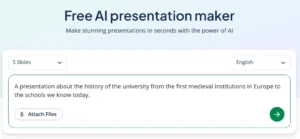
1. Describe your presentation
Start by entering a short prompt that describes your topic. You can also choose how many slides you want and upload files you’d like the AI to incorporate.
2. Edit the generated content
Click the green arrow to move to the next stage. Quillbot’s AI presentation maker will then draft text for each slide based on your prompt. You can revise this content now or keep it as placeholder text to work on later in your presentation software.

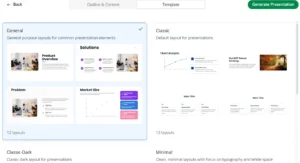
3. Select a style
Choose one of the theme options, including Classic, Professional, and Minimal, to shape the visual style and layout of your slides.
4. Generate your presentation
Click the green Generate Presentation button, and Quillbot’s AI presentation maker will create your slides, including AI-generated images. Preview the results and regenerate if you’d like to try another variation. When everything looks right, export your presentation as a PPTX file. You can then open it in PowerPoint, Google Slides, or any compatible tool to edit and adapt.

Frequently asked questions about AI presentation makers
- How can I open a presentation generated with an AI presentation marker?
-
You can open a presentation generated with an AI presentation maker—such as Quillbot’s free AI presentation maker—by exporting it as a PPTX file and opening it in presentation software like PowerPoint or Google Slides.

2 comments
abdo
June 19, 2026 at 3:24 AMSlide 1: Introduction
Imagine receiving a message saying:
> "Your account will be locked. Click here immediately."
Many people click without thinking. This is how phishing attacks work.
Phishing is a cybercrime where attackers trick people into giving away personal information.
---
Slide 2: How Phishing Works
1. The attacker sends a fake email, text message, or social media message.
2. The message looks trustworthy.
3. The victim clicks a link or enters personal information.
4. The attacker steals the information.
---
Slide 3: Common Signs of Phishing
⚠ Urgent messages
⚠ Requests for passwords or personal information
⚠ Suspicious links
⚠ Spelling and grammar mistakes
⚠ Messages from unknown senders
---
Slide 4: Real-Life Example
A student receives an email saying:
> "Your Netflix account has a payment problem. Click here to update your information."
The student enters credit card details on a fake website, and the information is stolen.
---
Slide 5: How to Protect Yourself
✅ Check the sender carefully
✅ Do not click suspicious links
✅ Use strong passwords
✅ Enable two-factor authentication (2FA)
✅ Think before you click
---
Slide 6: Conclusion
Phishing is one of the most common cyber threats.
Anyone can become a victim.
Being careful online can protect your personal information.
Final Message
"Think before you click."
Question
Have you ever received a suspicious email or message?
Olivia (Quillbot Team)
June 22, 2026 at 3:29 PMHi Abdo,
Thanks for this comment. Yes, this could be a very useful presentation.
Thanks for sharing this example.
Cheers,